
TLauncher Download & Explore
The software also supports multiplayer setups that meet the required game and server settings.
Game Versions
Manage different Minecraft versions with ease.
Mods
Add compatible mods to customize your gameplay.
Easy Setup
Configure your Minecraft setup in simple steps.
Servers
Connect with multiplayer servers and friends.

TLauncher
A simple Minecraft launcher for managing versions, mods, skins, servers, and game settings.
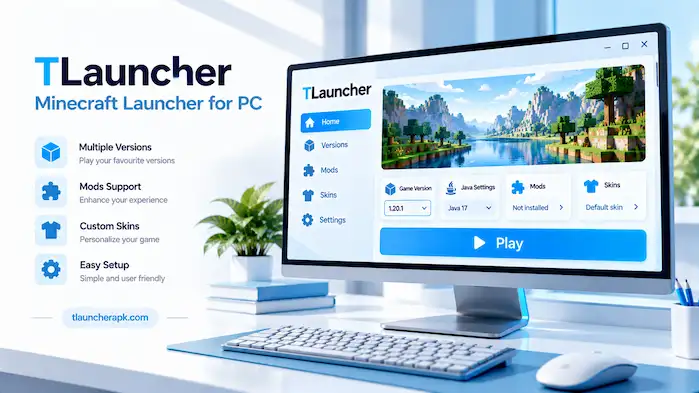
TLauncher is a Minecraft launcher that helps users manage game versions and start Minecraft from one place. In addition, it provides tools for selecting versions, changing Java settings, managing supported mods, and using skins. Furthermore, the software supports multiplayer setups that meet the required game and server settings. This guide explains the main features, installation process, Java settings, mods, skins, servers, account options, mobile questions, safety points, and common problems.
What Is TLauncher?
TLauncher is software that helps users manage and start Minecraft installations. For example, it gives users a way to select a game version before launching Minecraft. In addition, the program can provide settings for Java, memory, mods, skins, and multiplayer. However, the available options depend on the selected Minecraft version and the setup used by the player. Overall, its main purpose is to make game setup easier from one interface.
TLauncher as a Minecraft Launcher
A Minecraft launcher prepares the game and starts the selected installation. In this case, TLauncher provides controls for choosing a version and setting up the game before launch. For example, users can select the release they need and review the available settings. As a result, the launcher differs from Minecraft itself. Minecraft is the game, while the launcher manages the process used to start it.
What Can You Do With TLauncher?
The program lets users choose Minecraft versions and manage different game setups. In addition, it can provide access to supported mods, skins, Java controls, and multiplayer options. Furthermore, memory settings can be adjusted when a game setup needs more resources. Users can keep different versions for different purposes. Therefore, each setup should match the requirements of its mods, servers, and other files.
TLauncher vs Minecraft
Minecraft is the game that users play, while TLauncher is a separate program used to start and manage the game. For example, the launcher can help users select versions and change setup options. Meanwhile, Minecraft provides the actual game world and gameplay. Therefore, knowing this difference makes it easier to understand installation and troubleshooting steps.
How Does TLauncher Work?
The launcher starts Minecraft through a selected game setup. Users first choose a Minecraft version and then review the available settings. Java may be required for Minecraft Java Edition. Mods and other files must also match the selected release. Once the setup is ready, the program loads the required files and starts the game. A wrong version or setting can cause the launch to fail.
Choosing a Minecraft Version
The selected Minecraft version affects the rest of the game setup. Mods may support only certain releases. Servers can also accept only specific versions. Older releases may have different requirements from newer ones. Users should check the required version before adding mods or joining multiplayer servers.
Configuring a Game Installation
A game installation contains the files and settings needed to start Minecraft. Users can select a version and adjust the available options. Checking the selected release before launch is useful when several setups are available. It helps prevent users from opening the wrong version or loading incompatible files.
Java and Runtime Settings
Minecraft Java Edition uses a Java runtime to start the game. The required Java version can depend on the Minecraft release. A wrong runtime may cause errors or stop the game from opening. Users should check the requirements for their selected version before changing Java settings.
Launching Minecraft
After the setup is ready, users can start the game from the launcher. The selected version loads with the chosen settings. If the game fails to open, check the Java runtime, memory allocation, game version, and installed mods. These areas can cause common startup problems.
Managing Mods and Customizations
Mods can add features or change parts of Minecraft. They must match the game version and the required mod loader. Users should check these details before installing a file. A mod made for another release may cause a crash or stop the game from opening.
TLauncher Features
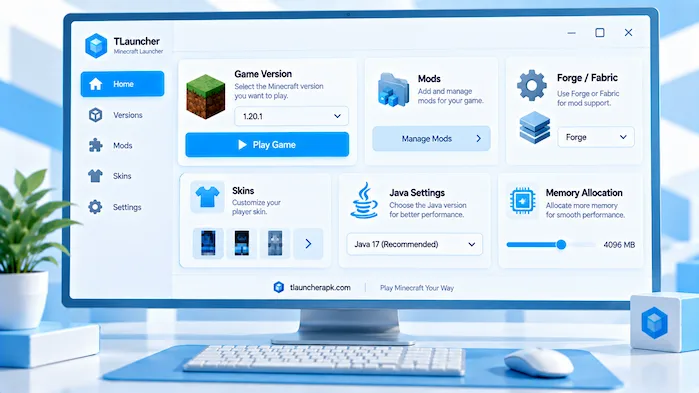
The software provides several tools for managing Minecraft setups. Users can choose versions, work with supported mods, change skins, and adjust Java settings. Memory controls can help with larger game setups. Multiplayer support can also be used when the selected version meets the server requirements. Each feature has its own compatibility rules.
Version selection lets users choose the Minecraft release they want to run. Different releases can have different features and requirements. Some mods work with only one or a few releases. Servers may also limit the versions they accept. Choosing the right release before launch can prevent many problems.
Mods change or add features to Minecraft. A modpack combines several mods into one setup. These files can need more RAM and storage than a basic game. Users should check the required Minecraft version and loader before installation. This helps prevent conflicts between files.
Forge and Fabric are mod loaders that support different Minecraft setups. OptiFine provides graphics and performance options for supported releases. Each tool has its own requirements. Users should check the game version before adding any of them. A mismatch can cause errors during startup.
The skin system lets players change the appearance of their Minecraft character. Skin support can depend on the account and game setup. Users should save their changes before starting the game. If a new skin does not appear, checking the active account and settings is a useful first step.
Java settings control the runtime used by the game. Memory settings control how much RAM the game can use. Giving the game more RAM does not always improve performance. The operating system and other programs also need memory. Users should choose an amount that fits their computer and game setup.
The launcher can be used with compatible Minecraft servers. Server access depends on the game version, server rules, account type, and installed files. Some servers also have mod requirements. Users should check these details before connecting. A version mismatch can lead to a connection error.
Configuration settings control how the selected game setup starts. Users can review the game version, Java runtime, memory, and other available options. Mods should also be checked before launch. Keeping the settings matched with the selected release can reduce common errors.
TLauncher Minecraft Versions
Different Minecraft releases can be used for different game setups. Each version may have its own features, Java needs, mod support, and server support. Users should choose a release based on the setup they want to use. Changing versions without checking compatibility can create problems with existing mods or worlds.
Older Minecraft Versions
Older releases can still be useful for some mods, servers, and worlds. A newer version may not support older files. Users should check the requirements before moving an existing setup to another release. A backup can also help protect important worlds.
Minecraft Snapshots
Snapshots are test releases that can include features before a full Minecraft update. They may contain bugs or changes that are not found in stable releases. Some mods and servers may not support them. Users should avoid using snapshots for important worlds unless they understand the risks.
Version Compatibility
Compatibility means that the different parts of a setup can work together. The Minecraft version, Java runtime, mods, loader, and server may all have requirements. One wrong version can cause an error. Checking these requirements before installation can save time.
Why Minecraft Version Matters
The selected release affects many parts of the game. It can decide which mods work and which servers can be joined. Java requirements can also change between releases. Choosing the right version first makes the rest of the setup easier.
TLauncher for PC and Windows
The launcher is mainly used as a desktop tool for Minecraft Java Edition. PC users can manage game versions, Java settings, mods, and other options from one place. Windows users should check their system before installation. The computer should have enough RAM, storage, and graphics power for the selected setup.
TLauncher for PC
The PC version provides a desktop way to manage Minecraft installations. Users can choose a release and change its settings before starting the game. Basic Minecraft needs fewer resources than a large modpack. Shaders and high-resolution textures can also increase hardware use.
TLauncher for Windows
Windows users can install the program with a compatible installer. The setup may ask for permission to add files to the computer. Users should check the installer before opening it. Windows security tools may also scan the file during the process.
TLauncher System Requirements
System needs depend on the Minecraft release and the selected settings. A basic setup uses fewer resources than a large modpack. Shaders can increase graphics demand. Users should check RAM, storage, CPU power, and graphics support before running a demanding setup.
TLauncher macOS Support
Mac users should check their macOS version and Java setup before installation. Some security prompts can differ from Windows. The launcher and Minecraft release must also support the system. Checking these requirements first can prevent setup problems.
TLauncher Download and Installation
The download and installation process should begin with a source that users can verify. Check the installer before opening it. The computer must also meet the needs of the selected Minecraft setup. After installation, users can open the program, choose a version, and review the available settings.
For detailed installation steps, system checks, Java setup, and common download issues, see our TLauncher Download guide.
TLauncher Download
The download provides the installer needed to set up the program. Users should check the file name and source before opening it. Unknown mirrors can contain altered files. A security scan is also useful before installation.
TLauncher Download for PC
The PC download should match the operating system. Windows and macOS can have different installation steps. Users should confirm the file type before opening it. Enough storage should also be available for the launcher and game files.
TLauncher Installer
The installer adds the required program files to the computer. It may ask users to choose a folder or confirm permissions. Follow the setup instructions and wait for the process to finish. Once complete, open the program and check the selected game version.
How to Install TLauncher
Download the compatible installer first. Open the file and follow the setup instructions. Choose the required options and wait for the installation to finish. Then open the launcher and select a Minecraft version. Check Java and memory settings before starting the game.
TLauncher Installation Requirements
Requirements depend on the operating system and game setup. Users need enough storage for the program and Minecraft files. Java may also be required for Minecraft Java Edition. Large modpacks can need more RAM and storage.
Download and Installation Safety
Check the source before downloading software. Scan the installer with trusted security tools. Do not open a file that looks suspicious. Avoid pages with unclear buttons or unexpected redirects. Keeping the operating system updated also helps reduce security risks.
TLauncher Java
Java is an important part of Minecraft Java Edition. In addition, the game needs a suitable Java runtime to start. However, the required version can depend on the Minecraft release. Furthermore, mods can also add their own requirements. Therefore, users should check the game and mod needs before changing Java.
Why Does TLauncher Need Java?
Minecraft Java Edition uses Java to run the game. As a result, a compatible runtime is needed for startup. If the runtime is wrong, the game may show an error or close during launch. For this reason, users should check the Java requirements for their selected release.
Java Compatibility
Java compatibility depends on the Minecraft version and game setup. For example, some releases need a different runtime from others. Therefore, users should not change Java without checking the required version. In turn, a suitable runtime can prevent many launch problems.
Java and Minecraft Versions
Different Minecraft releases can have different Java requirements. As a result, a runtime that works with one release may not work with another. Therefore, users who switch between versions should check the runtime used by each setup.
Java and Mods
Mods can add more Java requirements to a game setup. In addition, the mod loader and Minecraft version may also need to match. Before installing a modification, users should check all three. This approach can help prevent crashes and launch errors.
Java and Memory Settings
Java controls the runtime used by Minecraft, while memory settings control the amount of RAM given to the game. However, users should not assign all available RAM to Minecraft. Instead, the operating system still needs enough memory to work.
Common Java Problems
Java problems can stop the game from opening. They can also cause crashes and error messages. First, check the Java version. Then, review memory, Minecraft version, and installed mods.
TLauncher Mods and Modpacks
The launcher can work with compatible Minecraft mods and modpacks. Mods can add features or change gameplay. Modpacks combine many mods into one setup. These files must match the selected Minecraft version and loader. Some setups also need a certain Java version.
TLauncher Mods
Mods change parts of Minecraft. Some add new items or features. Others change graphics or game rules. Users should check the supported Minecraft version before installing a mod.
How TLauncher Mods Work
A mod runs inside a compatible Minecraft setup. It may need Forge or Fabric to load. The loader must also match the game version. If one part is wrong, the game may fail to start.
TLauncher Modpacks
A modpack contains several mods in one setup. It can use more RAM and storage than a basic game. Users should check the pack requirements before installation. The Minecraft version and loader should also match.
TLauncher Mods Folder
Mods are placed in the correct folder for the selected setup. The location can depend on the operating system and game version. Users should make sure the folder belongs to the active installation. Files from another setup may not work.
TLauncher Forge Mods
Forge supports mods made for compatible Minecraft releases. A Forge mod must match the game version and Forge version. Users should check both before installation. Mixing versions can cause errors.
TLauncher Fabric Mods
Fabric supports its own set of mods and game versions. A Fabric mod needs a compatible Minecraft release and Fabric setup. It should not be used with Forge unless the mod supports that environment.
TLauncher OptiFine
OptiFine provides graphics and performance options for supported releases. It can also add extra video settings. Users should check version support before installing it. Other mods may affect compatibility.
Minecraft Version and Mod Compatibility
Every mod should be checked against the selected game release. A mod can have different files for different versions. Users should read its requirements before installing it. This simple check can prevent many problems.
Common Mod Problems
Mod problems can cause crashes, missing features, or failed launches. Check the game version, loader, Java version, and memory settings. If the issue began after adding a mod, remove that file and test the game again.
TLauncher Skins
Skins let players change the look of their Minecraft character. Skin features can depend on the account and game setup. Users should save changes before starting the game. If the new appearance does not show, check the account and skin settings.
How the Skin System Works
The skin system connects a selected character design with the supported game setup. Users can choose a skin and apply it through the available settings. Account access and game configuration can affect the result.
How to Use a Skin
Choose a supported skin and save the change. Start the game after checking the selected account. If the skin does not appear, review the account and skin settings. A restart may also refresh the change.
Changing a Minecraft Skin
Users can select a different character design through the supported skin settings. The new choice should be saved before launching the game. If the old skin remains, check the account and connection.
Skin and Account Requirements
Some skin functions depend on account settings. Users should check which account is active before changing a skin. Account access can affect how the selected appearance is shown.
Why Is My Skin Not Showing?
A skin may not appear because of an account issue, wrong setting, connection problem, or version issue. Check the active account first. Then review the skin settings and restart the game.
Common Skin Problems
Common issues include an old appearance, a missing skin, or a skin that does not update. Check the account, settings, and connection. Test the setup again after making one change at a time.
TLauncher Login and Accounts
Login settings can affect account access and some Minecraft features. Users should keep their account details private. Passwords should never be shared with unknown people. Account needs can also depend on the Minecraft setup being used.
TLauncher Login
The login process uses account details to provide access to supported services. Users should check their username, password, and internet connection if sign-in fails. They should also use the correct account service.
Accounts
Account settings can affect skins, game access, and multiplayer features. Users should know which account is active before changing these settings. Strong account security is also important.
Licensed Minecraft Accounts
A licensed Minecraft account provides access to services linked to an official purchase. Account rules can change over time. Users should follow the current requirements when signing in.
Minecraft Account and Launcher Access
Access can depend on the account, Minecraft version, and selected setup. A login error does not always mean the launcher is broken. Check account details and the internet connection before changing other settings.
Common Login Problems
Login problems can come from wrong details, network issues, or account errors. Check the account information first. Never send passwords to people who offer to fix an account.
TLauncher Servers and Multiplayer
The launcher can connect to compatible Minecraft servers. The server must support the selected game version. Some servers also have account or mod rules. Users should check these details before connecting.
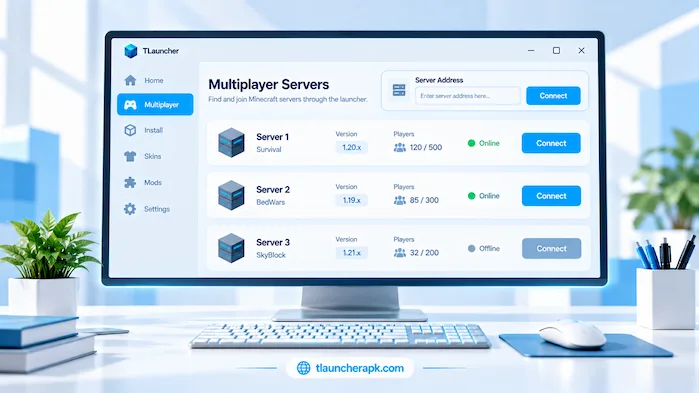
For server addresses, SMP gameplay, BedWars connections, and multiplayer troubleshooting, see our complete TLauncher Servers guide.
Minecraft Servers for TLauncher
Minecraft servers provide multiplayer game modes. Each server can have its own rules and version needs. Check the server information before adding its address. A version mismatch can stop the connection.
Server Compatibility
Server compatibility depends on the Minecraft version and server setup. Mods can also affect access. Some servers allow certain mods, while others require a standard setup. Users should read the server rules first.
Server Address and IP
A server address tells Minecraft where to connect. It can be a domain name or an IP address. Enter the details exactly as provided. A small typing error can prevent access.
SMP Servers
SMP means survival multiplayer. These servers let players share a Minecraft world. Each server can have different rules, features, and version needs. Users should check those requirements before joining.
BedWars Servers
BedWars is a multiplayer Minecraft mode. Players protect their beds while fighting other teams. Rules can differ between servers. Users should check the required Minecraft version before joining.
Best TLauncher Servers
A suitable server depends on the player’s needs. Check the game mode, version, rules, player count, and connection details. These points can help users find a server that matches their preferred play style.
Minecraft Version and Server Compatibility
A server may support only certain releases. Users should check the required version before connecting. A wrong release can cause a version error.
Mods and Server Compatibility
Some servers allow mods, while others require a standard setup. A mod can also cause problems if it changes files that the server does not support. Follow the server’s mod rules before joining.
Cracked Minecraft Servers
Some servers use account rules that differ from official servers. Users should read the server rules before connecting. They should also check its security and account requirements. Server policies can change over time.
Common Server Problems
Server problems can come from a wrong address, wrong version, network issue, or server maintenance. Check the address first. Then check the game version and internet connection. If other servers work, the issue may be linked to the selected server.
TLauncher BedWars Servers
BedWars servers need a working address and a compatible Minecraft version. Server rules can vary between networks. Users should check the server information before connecting. This can prevent common version and connection errors.
BedWars Server IP and Address
The IP or address tells Minecraft where to connect. Copy it without changing any characters. Check whether a port is also required. Use current information from the server operator.
How to Add a BedWars Server
Open the multiplayer menu and choose the option to add a server. Enter the server name and address. Save the entry and select it from the list. The game version must match the server.
How to Join BedWars
Connect to a compatible server through the multiplayer menu. Some networks place BedWars inside a lobby. Others may show it as a separate mode. Follow the server’s instructions when available.
BedWars Version Compatibility
BedWars servers can support specific Minecraft releases. Check the required version before joining. An unsupported release may cause a connection error.
Common BedWars Connection Problems
Check the server address if the connection fails. Then check the Minecraft version and internet connection. Server maintenance can also prevent access. If other servers work, the problem may be with the selected network.
TLauncher for Android and Mobile
Android and desktop Minecraft setups work in different ways. Users should check the exact application, Minecraft edition, and device requirements before installing a mobile solution. Java-based setups may need extra support on Android. Desktop features should not be assumed to work in the same way on a phone.
TLauncher for Android
Android users should check whether the software supports their device and Minecraft edition. Phone hardware can limit large game setups. RAM and storage are also important when using mods.
TLauncher Mobile
Mobile Minecraft uses different controls and file systems from desktop computers. Some desktop features may not work in the same way on Android. Users should check the app requirements before installation.
TLauncher Java for Android
Java-based Minecraft on Android needs a suitable runtime and mobile environment. Users should check the Android version, device type, Java support, and Minecraft release. Not every desktop Java feature works on a phone.
Mobile Compatibility
Compatibility depends on the device, Android version, game edition, and app support. Large modpacks can need more storage and memory. Users should check these details before installing a demanding setup.
Desktop vs Mobile Minecraft Launchers
Desktop and mobile launchers run in different environments. More control over files and Java settings is available on desktop systems. Android uses its own file and security system. Users should choose software made for their actual device.
Android Installation and Security
Check the source before installing an Android app. Review its requested permissions. Avoid apps that ask for access they do not need. Keep security tools active when possible.
Is TLauncher Safe?
Safety depends on the software source, downloaded file, device, permissions, and security settings. Users should check files before opening them. Security software can help detect risky files. Account details should also be entered only through trusted services.
Is TLauncher Safe to Use?
Check the source and file before installation. Scan the installer with trusted security software. Keep the operating system updated. Do not ignore a security warning without checking why it appeared.
Is TLauncher a Virus?
A security warning does not always explain the full reason for a detection. Security tools can flag files for different reasons. Check the exact file and detection details before opening it. Do not run a file that cannot be verified.
Does TLauncher Have a Virus?
Check the exact installer with trusted security software. A file from an unknown source may not match a file from a known source. Avoid modified or suspicious installers.
Is TLauncher Malware?
Malware is software that can harm a device or perform unwanted actions. Users should check the exact file, source, and security result. A general claim is not enough to judge a specific installer.
Is TLauncher Spyware?
Spyware can collect information without clear user consent. Users should review permissions and security results. Avoid unknown installers and keep security tools updated.
Security and Privacy
Keep passwords private and use trusted login pages. Review permissions before installation. Scan downloaded files and update the operating system. These steps can reduce common security risks.
Is TLauncher Safe for PC?
PC users should check the installer before opening it. Windows security tools can help detect risky files. Users should also keep Windows and security software updated.
Is TLauncher Safe for Mac?
Mac users should check the file source and system warnings before installation. Avoid unknown installers. Review permissions and keep macOS security updates current.
Is TLauncher Safe to Use in 2026?
Security information can change when software files and security tools change. Users should check current file results instead of relying on old claims. A current scan is more useful for a specific downloaded file.
How to Reduce Security Risks
Use a trusted source and scan files before opening them. Keep the operating system updated. Do not share passwords. Avoid unknown mirrors and files with unclear names. Check permissions before installing software.
TLauncher Alternatives
Other Minecraft launchers offer different tools for managing game versions and setups. Some focus on modded instances. Others focus on official account access or gameplay features. Users should compare the features they need before choosing another option.
Official Minecraft Launcher
The official Minecraft Launcher provides access to Minecraft through official account services. It supports official game access and related features. Users can compare its tools with other launchers based on their needs.
Prism Launcher
Prism Launcher focuses on Minecraft instances. Users can keep different game setups separate. This can help when using several versions or modded profiles.
MultiMC
MultiMC is an alternative launcher with a focus on separate Minecraft instances. Users can create different setups for different versions. Its current features should be checked before use.
Lunar Client
Lunar Client is a Minecraft client with built-in gameplay and performance features. It has its own setup and requirements. Users should check version support before installation.
GDLauncher
GDLauncher provides tools for managing Minecraft setups and modded instances. Users can compare its features with other options. The right choice depends on the setup they want to manage.
Comparing Minecraft Launcher Features
Compare launchers by checking version support, mod support, account options, system support, and instance management. Java controls can also matter. The right option depends on the Minecraft setup and device.
Lunar Client for TLauncher
Lunar Client and the launcher have different roles. Users who want to use both should check the current requirements of each program. Minecraft version support can affect compatibility. Game files should not be changed without checking the required setup first.
What Is Lunar Client?
Lunar Client is a Minecraft client with built-in features for gameplay and performance. It has its own installation and setup needs. Users should check its current requirements before use.
Can Lunar Client Work With TLauncher?
Compatibility depends on the Minecraft version and how each program manages game files. Users should check the current setup rules before combining them. A direct connection between two programs should not be assumed.
TLauncher and Lunar Client Compatibility
Compatibility can change based on the Minecraft release and client setup. Users should check version support before changing files. A backup can help protect existing worlds and settings.
TLauncher Troubleshooting
Most launcher problems have a clear starting point. Check the game version first. Then check Java, memory, mods, login settings, and the network. Changing one setting at a time makes the problem easier to find.
TLauncher Won’t Open
Check the installer and system permissions first. Make sure the file matches the operating system. Security software can also block a file. If the issue started after an update, check the latest change.
TLauncher Download Problems
A failed download can come from the browser, network, security tool, or file source. Check the internet connection first. Then check whether the browser blocked the file. Avoid random download mirrors.
TLauncher Installation Problems
Installation can fail because of low storage, permissions, a damaged file, or system issues. Check the installer and available space. Make sure the file matches the operating system.
Minecraft Launch Errors
Check the Minecraft version and Java setup first. Then review memory settings and installed mods. Try starting a clean setup without extra mods. This can show whether a custom file is causing the error.
TLauncher Java Problems
Check the Java version for the selected Minecraft release. Then review the Java path and memory settings. If the problem started after a Java change, return to the earlier working setup.
TLauncher Mod Problems
Check the mod version and loader. Make sure both match the Minecraft release. Remove the latest mod if the game stopped working after installation. Add it again after checking its requirements.
TLauncher Login Problems
Check the account details and internet connection. Make sure the correct account service is being used. Never send your password to anyone offering help.
TLauncher Server Problems
Check the server address and Minecraft version. Then test the internet connection. Server maintenance can also block access. If other servers work, the issue may be with the selected server.
TLauncher Skin Problems
Check the active account and skin settings. Make sure the skin was saved before starting the game. A connection issue can also stop the change from appearing.
TLauncher Performance Problems
Performance depends on hardware and game settings. Large modpacks and shaders can need more resources. Lower graphics settings if the game runs slowly. Check memory use before changing advanced settings.
Is TLauncher Down?
A connection error does not always mean the service is down. Check the internet connection first. Then check login status, game settings, and server access. A local problem can look like a wider outage.
TLauncher Version Information
Launcher versions can change over time. Users should check current version information before using an old installer. Older releases may have different system and game requirements. Current information should be used for download decisions.
Current Version
Check a trusted current source before calling a release the latest version. Software versions can change after an article is published. Current information should be used for installation.
Older Versions
Older releases may be needed for a specific game setup. They can also lack newer fixes or support. Users should know why they need an older release before installing it.
Version History
Version history shows how the software has changed over time. It can help users understand older setups. Current installation advice should still use current requirements.
TLauncher Advantages and Limitations
The launcher provides tools for game version management, Java settings, mods, skins, and multiplayer. These features can make game setup easier. Users still need to check compatibility and system requirements. Account rules and security should also be considered.
Features Users May Find Useful
Version selection can help users manage different game releases. Mod support can help with custom setups. Java and memory settings provide more control over the game environment. Skin and multiplayer tools add more options.
Limitations and Considerations
Compatibility can become a problem when versions and mods do not match. Large setups can also need more RAM and storage. Mobile and desktop systems have different limits. Users should check requirements before changing their setup.
TLauncher Website and Source Information
Users may find several websites that use the same software name. A similar domain does not prove that a file is official or safe. Check the source before downloading software. Review and scan the file before installation.
Understanding TLauncher Websites
An information website and a software provider are not always the same. Users should check who controls a website before trusting a download. The website address should also be checked against the file information.
Checking a Website Before Downloading Software
Check the domain and download details before clicking a button. Avoid pages with unclear files or many redirects. Scan the downloaded file before opening it. These steps can reduce common risks.
Avoiding Confusing Download Pages
Some pages show more than one download button. Read the button text before clicking. Check the file name after downloading. Do not open a file that does not match what you expected.
Frequently Asked Questions
Conclusion
TLauncher helps users manage Minecraft game versions, settings, mods, skins, and multiplayer setups. For example, users can choose a game version and adjust Java or memory settings before starting the game. In addition, mods and servers should match the selected release. For PC and Mac users, checking system needs before installation is important. Similarly, Android users should check mobile support and Java requirements before using a mobile setup. Furthermore, safe software use requires a trusted source, file scans, strong account security, and updated system tools. Ultimately, checking each requirement before making a change can make the Minecraft setup easier to manage and troubleshoot.