
TLauncher Alternatives are other Minecraft launchers that players can use to manage Minecraft installations, versions, mods, and game profiles. In addition, different launchers focus on different needs. Some provide simple version management, while others offer advanced modpack tools or cleaner profile controls. Therefore, the right option depends on how you play Minecraft and which features you need. This guide explains the main types of alternatives and how they differ from a typical third-party launcher setup. TLauncher is a Minecraft launcher that provides tools for managing supported game versions and related settings.
Why Use TLauncher Alternatives?
Players may look for another launcher for several reasons. Some want better modpack management. Others want separate profiles for different Minecraft versions. A player may also prefer a launcher with a simpler interface or stronger support for custom instances. Your choice can also depend on whether you use mods, vanilla Minecraft, older versions, or multiple game profiles.
Different Launcher Features
Minecraft launchers do not all work in the same way. One may focus on modpacks, while another may provide detailed instance controls. Some launchers make it easy to create separate game folders. Others focus on a simple installation process. Compare the features you actually need before changing launchers.
Mod Management
Mods are a major reason players explore other launchers. A useful launcher can make it easier to create an instance, select a Minecraft version, and manage a mod loader. Some tools also help organize modpacks and related files. Your preferred mod system should guide your choice.
Multiple Minecraft Profiles
Separate profiles can keep different game setups apart. For example, you can create one profile for vanilla Minecraft and another for a modded version. This reduces the chance of mixing files between installations. It can also make testing easier.
Popular TLauncher Alternatives
Several Minecraft launchers are known for different approaches to game management. These include the official Minecraft Launcher, Prism Launcher, MultiMC, Lunar Client, and GDLauncher. Each has its own interface and feature set. Instead of treating one launcher as suitable for everyone, compare how each one handles your preferred Minecraft setup.
Official Minecraft Launcher
The official Minecraft Launcher is designed by Mojang Studios and Microsoft for accessing supported Minecraft games. In addition, it provides access to official Minecraft releases and account-based features. As a result, players who want a direct official launcher experience can use this approach.
Minecraft Version Management
The official launcher provides access to supported Minecraft releases. For example, players can select available versions from the launcher and start the game through their account. However, the exact options can change as Minecraft receives updates.
Minecraft Account Support
The launcher works with Microsoft account authentication. Therefore, it is suitable for players who own Minecraft through the official ecosystem. In addition, account access connects the launcher with supported Minecraft services.
Vanilla Minecraft
Players who mainly use standard Minecraft may find the official launcher suitable for their needs. In addition, it keeps the basic setup focused on the official game. However, modded setups may require additional tools depending on the mods and loader.
Prism Launcher
Prism Launcher is an open-source Minecraft launcher focused on managing separate game instances. In addition, each instance can have its own Minecraft version, loader, mods, and settings. As a result, this structure can be useful for players who regularly switch between different Minecraft setups.
Instance Management
An instance works as a separate Minecraft environment. For example, you can create different instances for different versions or mod collections. This approach helps keep files organized and reduces conflicts between setups.
Mod Loader Support
Prism Launcher supports common mod loaders such as Fabric, Forge, Quilt, and NeoForge where supported by the selected Minecraft version. The available options depend on the game release and launcher support.
Separate Game Setups
Players can keep a lightweight vanilla instance separate from a large modpack. This makes it easier to test changes without affecting another installation. It can also simplify troubleshooting.
MultiMC
MultiMC is another launcher built around separate Minecraft instances. Its interface focuses on organization and control rather than a large collection of extra features. Players can create separate configurations and manage them from one application.
Instance Organization
Each instance can contain its own Minecraft version and settings. This makes it possible to keep several game environments apart. It can be useful when working with older versions or custom configurations.
Mod Installation
Mods can be added to individual instances. This prevents one setup from changing another. Players should still check the Minecraft version and mod loader before installing a mod.
Custom Java Settings
Java settings can be adjusted for supported Minecraft versions. This gives users more control over the runtime used by each instance. Correct Java configuration can help avoid startup problems.
Lunar Client
Lunar Client is a Minecraft client focused on performance features, visual improvements, and gameplay tools. It is different from a basic launcher because it combines client features with the Minecraft startup experience.
Performance Features
Lunar Client includes features designed to improve the Minecraft experience on supported systems. Performance can still vary based on hardware and game settings.
Gameplay Features
The client provides various in-game features and interface options. These can be useful for players who spend time in competitive Minecraft modes.
Multiplayer Use
Lunar Client is commonly associated with multiplayer gameplay. However, server compatibility can depend on the Minecraft version and server requirements. Always check the server rules before using client features.
GDLauncher
GDLauncher focuses on Minecraft instance and modpack management. It provides tools for creating and managing different game setups. This can be useful for players who work with modpacks rather than only standard Minecraft.
Modpack Management
A modpack can contain many files that must work together. A launcher with modpack tools can simplify the process of creating or importing these setups. Players should still check the source of any third-party modpack.
Instance Settings
Separate instances allow users to keep different game configurations apart. This can make it easier to test mods or change settings without affecting another profile.
Game Version Selection
The selected Minecraft version should match the mods and loader used by the instance. Checking compatibility before installation can prevent many common errors.
TLauncher Alternatives for Mods
TLauncher Alternatives can be useful when mod management is your main concern. A launcher with separate instances can help keep modded and vanilla installations apart. Prism Launcher, MultiMC, and GDLauncher are examples of tools that focus on instance-based management. The important point is to match the launcher with your preferred mod loader and Minecraft version.
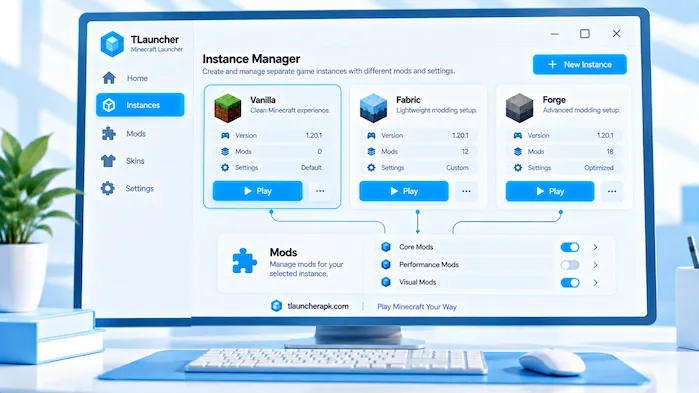
TLauncher Alternatives Fabric Mod Setup
Fabric mods require a compatible Minecraft version and Fabric setup. The launcher should allow you to create an instance that matches those requirements. Always check the mod’s supported version before installation.
TLauncher Alternatives Forge Mod Setup
Forge mods also depend on specific Minecraft and Forge versions. Installing a mod made for another release can cause errors. Keep the Forge version and Minecraft version aligned.
TLauncher Alternatives NeoForge Mod Setup
NeoForge supports its own mod environment for supported Minecraft releases. Check the required Minecraft version before creating the instance. Do not mix loaders unless the software and mods support that setup.
TLauncher Alternatives Modpack Profiles
A separate profile can make large modpacks easier to manage. Keep each modpack in its own instance when possible. This helps prevent files from one setup from affecting another.
TLauncher Alternatives for Different Minecraft Versions
Different Minecraft releases may need different Java versions, loaders, and mods. A launcher with separate profiles can make version switching easier. Instead of changing one installation again and again, you can keep several configurations available.
Older Minecraft Versions
Older Minecraft releases may use different Java requirements from newer releases. Check the runtime before starting an older version. Mods from that period may also require specific loader versions.
Newer Minecraft Versions
Newer Minecraft releases can introduce new features and changes to mod support. A launcher may need updated instance tools to support them. Always check the game and mod requirements before creating a new setup.
Multiple Versions
If you play several Minecraft releases, separate instances can save time. One instance can hold a newer version while another keeps an older modded setup. This also makes troubleshooting easier.
TLauncher Alternatives for Modpacks
Modpacks combine multiple Minecraft mods into one setup. Managing them manually can take time because every file must match the correct version. A launcher with modpack support can reduce this work by organizing the files into a dedicated instance.
TLauncher Alternatives Importing Modpacks
Some launchers support importing existing modpacks. Before importing one, check its source and Minecraft version. Make sure the required loader is also supported.
TLauncher Alternatives Updating Modpacks
Updates can change several files at once. Create a backup before making major changes. If an update causes a crash, you can return to the previous setup.
TLauncher Alternatives Removing Modpacks
A separate instance makes removal easier. You can delete the instance without changing other Minecraft profiles. Keep important worlds backed up before removing an instance.
TLauncher Alternatives for PC
PC users have many launcher options because Windows, macOS, and Linux provide flexible file and Java management. Your choice may depend on the operating system and the Minecraft version you use.
TLauncher Alternatives for Windows
Windows supports many Minecraft launchers. Check Java requirements, storage, and system resources before installing a launcher. Keep the launcher and security software updated.
TLauncher Alternatives for macOS
Mac users should download software intended for macOS. Java requirements can differ between Minecraft versions. Check the launcher documentation before changing Java settings.
TLauncher Alternatives for Linux
Linux users may have more control over Java and game files. However, setup steps can differ between distributions. Check the requirements for your distribution before installation.
TLauncher Alternatives for Performance
Performance depends on more than the launcher. Minecraft version, mods, Java settings, RAM, graphics settings, and hardware all matter. A different launcher may help with organization, but it cannot turn weak hardware into a high-end gaming system.
Memory Settings
Minecraft needs enough RAM to run without taking too much memory from the operating system. Large modpacks usually need more memory than vanilla Minecraft. Set memory based on your hardware and the size of the game setup.
Java Settings
The correct Java version can matter when starting Minecraft. Newer game releases may need newer Java versions. Check the requirements for the selected release before changing the runtime.
Graphics Settings
Lowering render distance and other graphics options can reduce the load on your computer. Start with moderate settings and adjust them after testing the game.
TLauncher Alternatives for Multiplayer
A launcher does not decide whether every Minecraft server will accept your connection. Server software, Minecraft version, account requirements, and client setup can all affect access. Always check the server’s rules before joining.
Server Compatibility
The Minecraft version on your client should match the version supported by the server. Modded servers may also require specific mods or loaders.
Account Requirements
Some servers require authenticated Minecraft accounts. Check the server’s login rules before connecting. Do not share account passwords with server administrators or unknown websites.
Modded Multiplayer
Modded servers often require the same mod set on the client. Even a small difference can cause a connection error. Check the required mod versions before joining.
TLauncher Alternatives vs TLauncher
TLauncher and its alternatives can differ in how they handle instances, mods, versions, accounts, and user controls. In general, a Minecraft launcher experience with version management and customization options is the main focus. However, other launchers may place more focus on instance management, modpacks, performance tools, or official account access.
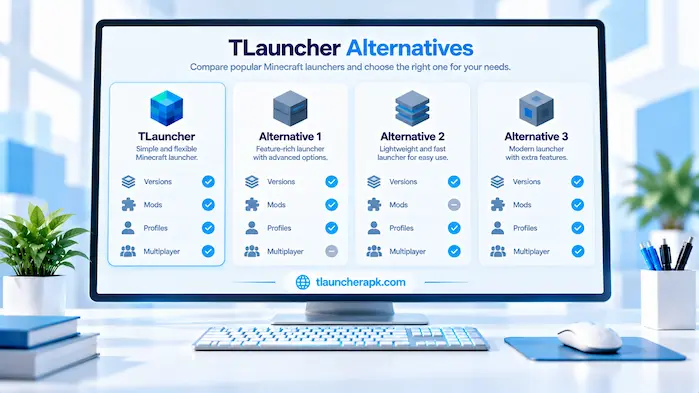
| Feature | TLauncher | Other Launchers |
| Minecraft versions | Supported versions vary | Depends on launcher |
| Instance management | Available features vary | Strong focus in some launchers |
| Mods | Supported setups vary | Depends on launcher and loader |
| Modpacks | Depends on setup | Some offer dedicated tools |
| Account support | Depends on launcher setup | Varies |
| Java control | Depends on version and setup | Varies |
| Multiplayer | Depends on server rules | Depends on server rules |
| Interface | Launcher-focused | Varies by application |
How to Choose TLauncher Alternatives
Choosing between launchers starts with your Minecraft needs. Think about the versions you play, the mods you use, and how often you switch between profiles. If you use many modpacks, instance management may matter more. If you mainly play standard Minecraft, a simple launcher may be enough.
Choose Based on Minecraft Version
Start by checking which Minecraft releases you use. Then check whether the launcher supports those versions. This avoids installing a tool that cannot manage your preferred setup.
Choose Based on Mods
If mods are important, check support for Forge, Fabric, Quilt, or NeoForge. Also check whether the launcher makes it easy to create separate modded instances.
Choose Based on Accounts
Check how the launcher handles Minecraft account authentication. Use official account methods where required. Never give your password to an unknown third-party page.
Choose Based on Simplicity
A launcher with many options can be useful, but it may also feel complex. If you only need basic Minecraft versions, a simple interface may be easier to manage.
How to Switch From TLauncher
Switching launchers does not always require removing your existing Minecraft files at once. First, back up important worlds and note the Minecraft versions you use. Then install the new launcher and create a test instance. This gives you a chance to confirm that the new setup works before changing your main installation.
Back Up Minecraft Worlds
Copy important worlds to a separate location before changing launchers. This protects your progress if a file is lost or overwritten.
Note Your Current Setup
Write down the Minecraft version, Java version, mods, and loader used by each important profile. This information can make it easier to rebuild the setup.
Create a New Instance
Start with a clean instance in the new launcher. Test vanilla Minecraft before adding mods. This helps confirm that the basic setup works.
Before setting up another launcher, review the TLauncher Download guide for information about installation, Java, and Minecraft setup.
Add Mods Later
Once the basic game starts, add mods one at a time or import a known modpack. This makes it easier to identify problems.
TLauncher Alternatives and Java
Java remains an important part of many Minecraft Java Edition setups. Different Minecraft versions can require different Java releases. A launcher may manage Java for you or allow you to choose the runtime. Check the requirements before changing this setting.
Java Version Matching
Do not assume that one Java version works with every Minecraft release. Match the runtime with the game version. A mismatch can cause startup errors or crashes.
Java Memory Settings
Memory allocation should fit your computer. Giving Minecraft too much RAM can leave less memory for other programs. Start with a sensible amount and adjust it based on performance.
TLauncher Alternatives for Beginners
Beginners may want a launcher with a clear interface and simple setup process. A complicated configuration can make the first installation harder. Look for clear version controls, simple instance creation, and easy access to game settings.
Simple Installation
A clear installer can make the first setup easier. Read each installation step and avoid optional software you do not need.
Easy Version Selection
A launcher should make it clear which Minecraft version you are starting. This is especially useful when you have several profiles.
Simple Mod Setup
If you plan to use mods, check whether the launcher explains the required loader and Minecraft version. Good organization can reduce common setup mistakes.
Common Problems With Minecraft Launchers
Changing launchers does not remove every Minecraft problem. Errors can still come from Java, mods, game versions, storage, graphics settings, or server compatibility.
Minecraft Won’t Start
Check the game version and Java runtime first. Then test the game without mods. A clean instance can show whether the issue comes from the launcher or another file.
Mods Cause Crashes
Remove the latest mod and test again. Check that every mod supports the same Minecraft version and loader.
Java Error
Check the Java version used by the instance. If the launcher allows automatic Java selection, test the recommended setting first.
Server Connection Error
Check the server address and Minecraft version. For modded servers, compare the required mods with your client setup.
TLauncher Alternatives for FAQs
What Are TLauncher Alternatives?
TLauncher Alternatives are other Minecraft launchers that can manage game versions, profiles, mods, or related Minecraft setups.
What Is the Official Minecraft Launcher?
The official Minecraft Launcher is the launcher provided through the official Minecraft ecosystem for supported Minecraft games and account features.
Which Launchers Support Minecraft Mods?
Several Minecraft launchers support modded setups. Support depends on the launcher, Minecraft version, and mod loader.
Can TLauncher Alternatives Manage Modpacks?
Some launchers provide tools for creating, importing, and managing modpack instances. Features differ between applications.
Can I Use Multiple Minecraft Versions?
Yes. Launchers with separate instances can help you keep different Minecraft versions in separate profiles.
Can I Switch From TLauncher?
You can install another launcher and create a new Minecraft setup. Back up your worlds before changing existing files.
Do Alternatives Need Java?
Java-based Minecraft setups need a compatible Java environment. The exact Java requirement depends on the Minecraft version and launcher.
Which Launchers Support Forge?
Several launchers can create Forge-based Minecraft instances. Check the supported Minecraft and Forge versions before installation.
Which Launchers Support Fabric?
Some Minecraft launchers support Fabric instances. The Fabric version must match the selected Minecraft release and the mods you plan to use.
Can TLauncher Alternatives Join Servers?
A launcher can start Minecraft, but server access depends on the server’s version, account rules, mods, and other requirements.
Conclusion
TLauncher Alternatives give Minecraft players different ways to manage versions, mods, profiles, and game installations. The official Minecraft Launcher focuses on the official game ecosystem, while tools such as Prism Launcher, MultiMC, Lunar Client, and GDLauncher take different approaches to instances, mods, or gameplay features. Your choice should match the Minecraft versions, mods, modpacks, and account setup you use. Before switching, back up your worlds and test a clean instance. This keeps the transition simple and makes it easier to find problems if they appear.