
TLauncher Servers let Minecraft players connect to multiplayer worlds, survival communities, mini-games, and other online game modes through a compatible launcher setup. Joining a server usually requires the correct Minecraft version, a working server address, and matching client settings. Some servers also require specific mods or account types. This guide explains how server addresses work, how to add a server, how SMP and BedWars servers differ, and what to check when a connection fails. The goal is to help you understand multiplayer setup without mixing unrelated launcher topics.
What Are TLauncher Servers?
TLauncher Servers are Minecraft multiplayer servers that players can access when their game version, account setup, and client configuration meet the server requirements. A server runs the multiplayer world, while your Minecraft client connects to it over the internet. Each server can use different game modes, rules, versions, mods, and player limits. Some focus on survival, while others offer mini-games or community features. Before joining, check the server address and supported Minecraft version. A mismatch can stop the connection even when your internet works.
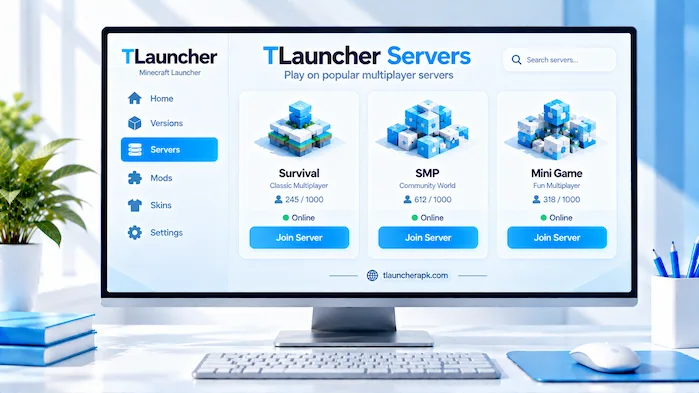
To understand the launcher itself, see our main TLauncher guide for information about its features, versions, mods, skins, and multiplayer support.
Minecraft Servers and Multiplayer
Minecraft servers provide shared worlds where several players can play at the same time. A server can host survival gameplay, creative builds, mini-games, role-play, or other custom modes. The server controls many parts of the multiplayer experience, including the world, rules, player access, and game settings. Your Minecraft client sends and receives data while you play. Because both sides must communicate correctly, the selected game version and connection details matter. A server may also require a specific mod setup before you can enter.
How Server Compatibility Works
Server compatibility depends on several parts of your Minecraft setup. The game version is one of the most important checks because a server may support only certain releases. Mods can also affect compatibility. A server using a specific mod set may require players to install matching versions on their computers. Some servers accept standard clients, while others need a defined configuration. If you cannot connect, check the server version first. Then review the address, port, mods, Java setup, and account requirements.
Online and Private Servers
Public servers are open to a wider group of players, while private servers can restrict access to selected users. A private server may use a password, whitelist, invitation, or another access rule. Public servers can also have their own registration systems and gameplay rules. Read the server information before joining so you know what is required. Never share account passwords or other private login information with server staff or other players. Use only the information needed to connect to the game.
How TLauncher Servers Work
A multiplayer connection starts when the Minecraft client sends a request to a server address. The server checks the connection and determines whether the client meets its requirements. If the version, account settings, and other conditions match, the game can load the multiplayer world. If something does not match, the server may reject the connection or display an error. This process explains why changing the Minecraft version can fix one connection problem while changing Java or mods can fix another.
Minecraft Version Matching
Minecraft version matching is one of the first things to check before joining a server. A server may support one release, several releases, or a specific range of versions. Your selected game version must fit within that supported range. For example, a server designed for one release may reject a client using another release. Always check the server information before launching the game. If you switch versions, review your mods and Java settings too because those can depend on the selected release.
Server Address and Port
A server address tells the Minecraft client where to connect. It may contain a domain name or an IP address. Some servers also use a port when the connection does not use the standard setting. Enter the address exactly as provided by the server owner. Extra spaces, missing characters, or an incorrect port can prevent a connection. If the address recently changed, an older saved entry may no longer work. Updating the saved server details can resolve that type of problem.
Java and Connection Settings
Java can affect Minecraft startup and, in some cases, multiplayer access. If the game opens without errors but cannot connect to a server, the problem may be elsewhere. However, a wrong Java setup can prevent the client from launching at all. Check the selected runtime when you see a Java error before trying to change network settings. It is easier to solve the problem when you separate launch errors from connection errors.
Server Authentication
Servers can use different authentication rules. Some may require a valid account, while others use their own login or registration process. The server owner decides which access method the server supports. Read its rules before attempting to connect. Do not enter your Microsoft or other account password into an unknown website or third-party form simply because a server asks for it. Keep authentication details private and use trusted account pages when an official login is required.
Minecraft Servers for TLauncher
Minecraft servers for TLauncher can include many types of multiplayer worlds, but compatibility remains the main concern. A server may support standard Minecraft gameplay or use plugins, mods, custom maps, and other features. Before adding one, check its supported game versions and connection method. You should also review whether it allows the account type and client setup you use. A server listing can provide useful details such as its address, supported modes, rules, and version information.
Compatible Minecraft Servers
A compatible server should support the Minecraft version and client configuration you plan to use. Compatibility does not mean that every server will work with every release. Some servers are built around a single version, while others support multiple releases. Mods can narrow compatibility further. Check the server’s current information before changing your installation. If the server requires a specific mod or loader, follow its instructions rather than installing unrelated modifications.
Public Multiplayer Servers
Public multiplayer servers can have open communities and several game modes. They may include survival, creative, SkyBlock, mini-games, PvP, or other custom experiences. Each server sets its own rules and access requirements. Some may limit player counts during busy periods. Others may require registration before certain features become available. Read the rules before playing, especially when the server uses chat, trading, or player-owned areas. Following the stated rules can help you avoid access restrictions.
Private Minecraft Servers
Private Minecraft servers are useful for smaller groups that want more control over who can join. The owner may provide a direct address and ask players to use a whitelist. Some private servers also require a matching modpack or specific game version. If you are setting up a private world, share the server address only with people you trust. Keep the software used to host the server updated and review its access settings from time to time.
Server Requirements
Server requirements can include a Minecraft version, Java setup, mod loader, modpack, account type, or minimum connection quality. Read the complete server instructions before attempting to join. If the server uses mods, make sure your client has the same required files and versions. Do not add extra mods just because they seem useful. An additional client-side modification can sometimes create a compatibility problem.
TLauncher Servers Address and IP
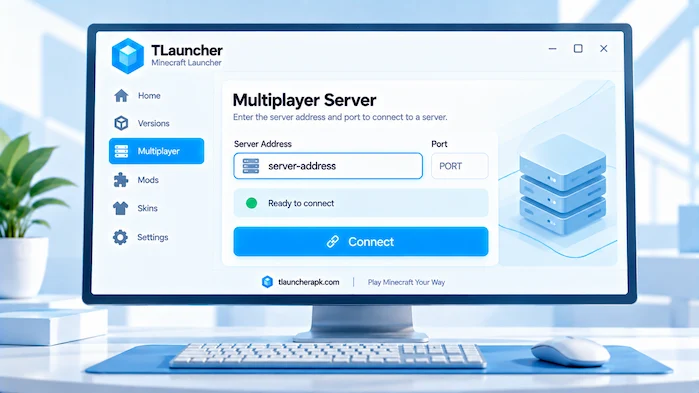
A TLauncher server address is the location your Minecraft client uses to find a multiplayer server. It can appear as a domain name, an IP address, or an address combined with a port. The address must be entered correctly in the multiplayer section. If you receive a connection error, compare the saved address with the current information from the server owner. Server addresses can change, and an old entry may remain in your list even after the server moves.
What a Server Address Means
A server address works like a destination for your multiplayer connection. Instead of searching for a world on your computer, Minecraft uses the address to reach a remote server. The address can be easy to read when the owner uses a domain name. An IP can look like a series of numbers separated by periods. Some servers use a port after the main address. Enter every required part exactly as shown in the server instructions.
What a Server IP Means
A server IP identifies the network location used for a multiplayer connection. It is not the same as your personal computer’s local IP in the context of joining a public server. The server owner provides the connection details needed by players. If the server uses a domain name, you may not need to enter a numeric IP. Always use the current address supplied by the server rather than an old address copied from an outdated list.
Where to Enter the Address
Open Minecraft’s multiplayer area and choose the option for adding a new server. Enter a name that helps you recognize the server, then place the provided address in the server address field. If a port is required, use the format given by the server owner. Save the entry and test the connection. You can edit the saved information later if the address changes.
Address and Port Format
An address and port may be provided together when the server uses a custom connection port. The exact format depends on how the server is configured. Copy the details carefully instead of changing punctuation or adding spaces. If the server owner provides separate address and port fields, enter each value in its correct location. A small mistake can cause a timeout or an unknown-host message.
Why an IP May Stop Working
A server IP may stop working when the server moves to another host, changes its network configuration, expires, or shuts down. A domain can also point to a different destination after an update. If a saved server suddenly becomes unavailable, check the latest information from the server owner. Do not assume your Minecraft installation is broken just because one server no longer responds.
How to Add a TLauncher Servers
Adding a server is a short process once you have the correct address. Start Minecraft with the version supported by the server. Open the multiplayer menu and select the option to add a server. Enter a name for the entry and copy the server address into the correct field. Save it and select the new entry from the server list. If the connection fails, check the version and address before changing other settings.
Open Multiplayer
Start the Minecraft version that matches the server requirements and open the multiplayer menu. The available options can vary with the game release, but the main purpose remains the same. You need to reach the server list before adding a new connection. If the multiplayer option is unavailable or shows an account-related message, check the account setup before troubleshooting the server itself.
Add a Server
Choose the option to add a server and enter a name that you can recognize later. The name is only for your saved list, so it does not have to match the official server name. Enter the server address exactly as provided. Avoid copying extra spaces from a webpage. Once the details look correct, save the entry and return to the multiplayer list.
Save the Server
Saving the server creates a local entry that you can use again. Review the address before saving because a small error can remain hidden until you try to connect. If the server supports an icon or status display, Minecraft may load that information after connecting to the address. A saved entry does not guarantee that the server is online. It only stores the connection details on your computer.
Join the Server
Select the saved server and choose the join option. Minecraft will attempt to connect and may display the server status before entering the world. If the connection succeeds, you can begin playing under the server’s rules. When the connection fails, read the exact error instead of repeatedly clicking the join button. The message can tell you whether the issue involves the version, address, authentication, connection, or mods.
TLauncher SMP Servers
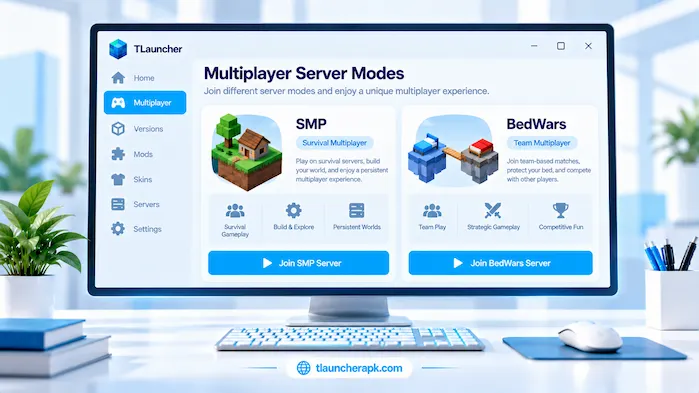
TLauncher SMP servers are multiplayer survival worlds where players share the same game environment. SMP means Survival Multiplayer, so these servers often focus on building, exploration, resource collection, trading, and cooperation. Each community can use different rules and plugins. Some servers keep gameplay close to standard survival, while others add custom features. Check the supported Minecraft version before joining and follow the server’s rules once you enter.
What SMP Servers Are
SMP servers provide a shared survival world for multiple players. Instead of playing alone in a local world, you can build and explore alongside other members. The server controls the shared world and keeps player progress available when you leave. Communities can choose different rules for building, combat, trading, and land use. Some servers are open to everyone, while others require approval or an invitation.
Survival Multiplayer
Survival multiplayer combines the normal survival loop with shared online play. Players gather resources, build structures, explore areas, and manage threats while other people use the same world. Server plugins can add protection systems, shops, claims, or other features. Before joining, read the rules because each community can handle player interactions in a different way. A server may also reset its world after a set period.
Private SMP Servers
Private SMP servers can give a small group more control over the world. The owner can choose who receives access and which rules apply. Players may use a shared modpack or a fixed Minecraft version to keep everyone compatible. If the server uses a whitelist, your account must be approved before you can join. Keep the server address private when the world is intended only for a small group.
SMP Version Compatibility
SMP version compatibility matters because the server and client must communicate using supported game protocols. A server running one release may not accept a client using another. Some server software can support several versions, but you should not assume this without checking. Mods can create another layer of compatibility. If the server requires a specific modpack, install the exact versions requested by its administrator.
TLauncher BedWars Servers
TLauncher BedWars servers provide access to a multiplayer mini-game where teams protect their beds while trying to eliminate opposing teams. The exact rules, maps, team sizes, and mechanics depend on the server. Before joining, check whether the server supports your Minecraft version and account setup. BedWars can also require a specific server address. Because this topic has its own search intent, detailed server lists and BedWars-specific troubleshooting can be handled on a dedicated guide.
BedWars Server Compatibility
BedWars compatibility depends on the server’s supported Minecraft version and access rules. Some networks may offer several mini-games through one server address, while others focus on a specific mode. Check the current requirements before joining. If the server uses custom resources or plugins, follow its instructions. A connection problem does not always mean that BedWars itself is unavailable.
BedWars Server Address
The BedWars server address is the connection information provided by the network hosting the game mode. Enter it in the multiplayer server field and save the entry. If the network provides a port, include it as instructed. Server addresses can change, so use current information from the network owner. Avoid relying on old lists when a server fails to respond.
Joining a BedWars Server
Choose a supported Minecraft version, open multiplayer, add the server address, and connect. Once inside the network, select the BedWars mode if it is available. Some networks place several games behind one main server address. Read the network’s instructions if the game mode does not appear. Version or account restrictions can also affect access.
Best TLauncher Servers
The phrase best TLauncher servers can mean different things because players may look for different game modes, communities, versions, or connection locations. Instead of using one fixed ranking, compare servers based on the features that matter to you. Check supported Minecraft versions, game modes, player activity, rules, connection quality, account requirements, and server uptime. A server that suits a survival player may not suit someone who wants mini-games. Current server information is also more useful than an old ranking.
TLauncher Servers Game Modes
Game modes help you narrow down a server before joining. Survival servers focus on resource gathering and building, while mini-game networks can offer BedWars, SkyWars, or other short matches. Creative servers provide different tools for building. Read the server description to confirm what it actually offers. Some networks combine several modes under one address, while smaller servers may focus on one main experience.
TLauncher Servers Player Count
Player count can help you understand how active a server is, but a larger number does not automatically mean a better experience. Some players prefer busy networks, while others want smaller communities. Check the current player information when available because activity can change during the day. A server with several modes may also divide players between different game areas.
TLauncher Servers Version Support
Version support is important when choosing a server. A network may support one release, several releases, or a defined range. Check this before changing your Minecraft installation. If you use mods, make sure they also work with the supported version. Keeping your setup aligned with the server can prevent avoidable connection errors.
TLauncher Servers Location
Server location can affect connection quality. A server that is far from your region may produce higher latency than one located closer to you. Your internet provider and network route also affect the result. If a server feels slow, compare the connection with another server before changing your entire Minecraft setup. This can help determine whether the issue is local or server-specific.
TLauncher Servers Rules
Every multiplayer community can set its own rules. Read them before joining, especially if the server allows trading, player combat, or shared building areas. Rules may cover chat behavior, cheating, griefing, account use, and other actions. Breaking the rules can lead to a warning, temporary restriction, or permanent ban depending on the server’s policy.
Cracked Minecraft Servers for TLauncher
Cracked Minecraft servers for TLauncher is a term often used for servers that allow players without a standard paid account authentication process. Access rules vary between servers, and not every server supports this setup. Some networks may require a specific login system, while others allow only authenticated accounts. Check the server’s current rules before attempting to connect. Never enter your main account password into an unknown server registration page. Account security should remain separate from server access.
Server Account Requirements
Account requirements can differ from one network to another. A server may require an authenticated Minecraft account, a server-specific registration, or another access method. Read the network’s instructions before entering any information. If a server asks for credentials, verify that the request comes from a trusted source. Never reuse a sensitive password on an unfamiliar service.
Server Rules and Access
A server owner decides who can connect and which account types are accepted. These rules can change over time. If you previously joined a server but cannot connect now, check its current access policy. A change in authentication or registration can explain the problem. Follow the server’s stated requirements rather than trying to bypass its access controls.
TLauncher Servers Compatibility
Server compatibility depends on more than the launcher itself. Your Minecraft version, Java environment, mods, mod loader, account setup, and network connection can all affect multiplayer access. Start with the server’s stated requirements and compare them with your current setup. If everything matches but the connection still fails, check whether the server is online. Testing another compatible server can also help you determine whether the problem is local.
Minecraft Version
The Minecraft version should match one supported by the server. A version mismatch can produce an incompatible-client message or prevent the connection from starting. Select the required release before entering multiplayer. If you switch versions, remember that your mods and Java setup may need to change as well.
Mods
Mods can change how Minecraft connects to a server. Some servers allow only specific mods, while others work with a standard client. A required mod may need to match the server version exactly. Extra mods can also create conflicts. When troubleshooting multiplayer, test a clean setup first if the server does not require client-side modifications.
Forge and Fabric
Forge and Fabric are mod loaders used with different Minecraft mod setups. A server may require one loader or may not require either. Check the server instructions before selecting a loader. You should also use a loader version that matches the Minecraft release and required mods. Installing the wrong loader can prevent the game from launching before you even reach the multiplayer menu.
Server-Side Requirements
Some features exist only on the server and do not require players to install the same software. Other systems need matching client files. The server owner should explain which components are required. Follow those instructions instead of assuming every plugin or server feature needs a client-side installation. This can keep your setup smaller and reduce conflicts.
Client-Side Requirements
A server may ask players to install a specific modpack, resource pack, or loader. If so, use the versions listed by the server owner. Mixing files from different releases can cause crashes or connection errors. Keep a separate game profile when possible so server-specific settings do not interfere with other Minecraft installations.
TLauncher Servers Not Working
When TLauncher servers are not working, first identify whether the problem affects one server or every server. If only one address fails, the server may be offline or the address may have changed. If several servers fail, check your internet connection, Minecraft version, Java setup, and account configuration. Read the exact error message before making changes. This approach can save time because different errors point to different causes.
Wrong Minecraft Version
A wrong Minecraft version is one of the first things to check. Compare your selected release with the version supported by the server. If they differ, select the correct release and try again. Do not change Java or reinstall the launcher before checking this simple setting.
Incorrect Server Address
An incorrect address can prevent Minecraft from finding the server. Compare every character with the current information provided by the server owner. Check the port when one is required. Remove accidental spaces and save the corrected entry. If the address still fails, test whether the server is online.
Server Offline
A server may be offline because of maintenance, technical problems, hosting issues, or a planned shutdown. Your local Minecraft setup cannot fix an offline server. Check the network’s official status information or community announcements. If other servers work normally, this can help confirm that the issue is limited to the unavailable server.
Authentication Error
An authentication error can occur when the server’s account requirements do not match your login setup. Check the server rules and your account status. Avoid entering your credentials into unofficial pages just to bypass the error. If the server requires a supported account type, follow its stated access method.
Java Problems
Java problems usually affect the game’s ability to start, but they can also appear during a multiplayer setup if the client is not configured correctly. Check the selected runtime and confirm that it supports the Minecraft version you are using. If the game opens normally, focus on the server address and version before changing Java.
Mod Mismatch
A mod mismatch occurs when the client and server expect different mod files or versions. Remove unnecessary mods and compare your setup with the server’s required list. If the server provides a modpack, use the specified version. Testing with a clean profile can show whether a modification is causing the connection problem.
Connection Timeout
A connection timeout means the client did not receive a response from the server within the expected period. The cause can be an offline server, network problem, firewall rule, routing issue, or incorrect address. Test another server to see whether your internet connection works. If only one server times out, check its status and address.
TLauncher Servers IP Problems
TLauncher servers IP problems can result from an outdated address, incorrect port, server downtime, or a network issue. Start by confirming the current connection details. Then check your Minecraft version and test another server. If other servers work, the issue may be limited to the original network. If every server fails, review your internet connection and local security settings.
Incorrect IP
A single wrong character can make an IP unusable. Compare the number groups carefully and make sure the port is correct when required. Do not add extra characters or spaces. Saving a fresh server entry can help if the existing entry contains an old address.
Changed Address
Server owners can change hosting providers, network settings, or domains. When this happens, an old saved address may stop working. Check the latest information from the server owner and update your saved entry. Avoid copying addresses from old forum posts or outdated videos.
Port Problems
Some servers use a custom port instead of the standard connection setting. If the owner provides a port, enter it exactly as instructed. A wrong port can make an active server appear offline. Check whether the server uses a separate address and port before changing other network settings.
DNS or Connection Issues
A domain-based server address can sometimes fail because of DNS or network routing issues. Test another website or server to check your connection. You can also try the server’s alternate address if the owner provides one. If the problem affects several services, the issue may be related to your local network or internet provider.
Server Restrictions
A server can restrict access by account type, region, version, whitelist, or other rules. These restrictions are controlled by the server owner. Read the current server information before troubleshooting your computer. If your setup does not meet the requirements, changing random launcher settings will not remove the restriction.
How to Join TLauncher Servers
To join a multiplayer server, first choose a Minecraft version supported by that server. Open the multiplayer menu and add a new server entry. Enter the server name and connection address, then save it. Select the entry and attempt to connect. If the server requires mods, a specific account, or another setup, complete those requirements first. When an error appears, use the message to identify whether the problem involves the server, version, network, or client.
Before joining a server, follow our TLauncher Download guide for installation, Java setup, and basic PC configuration.
Check the Server Version
Before joining, confirm which Minecraft release the server supports. This should be your first compatibility check. If your current profile uses another release, switch to the required one before connecting. Keep the version information available because it can also help when installing required mods.
Enter the Server Address
Enter the address exactly as provided. If a port is included, make sure it is entered in the correct format. Do not copy additional words from the server description. Save the entry after checking the details.
Check Required Mods
If the server requires mods, compare your client with its official requirements. Install only the files needed for that server. Make sure their versions match the selected Minecraft release. If the server does not require mods, a clean client can make troubleshooting easier.
Connect to the Server
Select the saved entry and connect. Give the game time to complete the connection instead of repeatedly clicking the button. If the server responds with an error, read it carefully. A message about an incompatible version requires a different fix from a timeout or authentication error.
TLauncher Servers and Mods
Mods can add new content or change Minecraft mechanics, but they can also affect multiplayer compatibility. A server may allow any client-side cosmetic mods, require a specific modpack, or reject modified clients. Always check the server rules before installing a mod. Keep server-specific profiles separate when possible. This makes it easier to switch between a standard multiplayer setup and a modded environment without changing every setting each time.
Matching Mod Versions
Matching mod versions matters when the server requires the same mod on the client. Even small version differences can cause an error. Use the exact files listed by the server owner when available. Check the Minecraft release and mod loader as well because a mod may support only certain combinations.
Client and Server Mods
Not every server plugin needs to be installed on your computer. Server-side plugins can change gameplay without adding the same files to the client. Client-side mods, however, may be required for specific features. Follow the server instructions to determine which files you actually need. Installing unnecessary software can create extra compatibility problems.
Troubleshooting Mod Conflicts
If a modded server stops working, remove recent changes first. Test the game with the required mod set only. Check the error message and compare the versions of Minecraft, the mod loader, and each required mod. Add optional mods back one at a time after the connection works. This method makes it easier to find the file causing the conflict.
Frequently Asked Questions
What Are TLauncher Servers?
They are Minecraft multiplayer servers that can be joined when the client meets the server’s version, account, mod, and connection requirements.
How Do TLauncher Servers Work?
A Minecraft client connects to a remote multiplayer world using a server address and compatible game configuration.
What Is TLauncher Servers IP?
It is the IP address used to identify a server’s network destination for a multiplayer connection.
How to Add TLauncher Servers?
Open multiplayer, choose the add-server option, enter the provided address, save the entry, and connect using a supported game version.
What Are TLauncher SMP Servers?
They are survival multiplayer worlds where multiple players share the same Minecraft environment and follow the rules set by the server owner.
Can TLauncher Join Minecraft Servers?
A compatible Minecraft setup can connect to servers that support its version, account configuration, and required client settings.
How to Find TLauncher Servers?
Check current server directories or information published by individual server owners, then verify the version and access requirements before joining.
Why Are TLauncher Servers Down?
A server can be offline because of maintenance, hosting problems, network issues, or a permanent shutdown.
Can TLauncher Play BedWars?
BedWars access depends on the multiplayer network, supported Minecraft version, account requirements, and server rules.
What Is TLauncher Servers Address?
It is the domain or IP information that the Minecraft client uses to locate a multiplayer server.
Are TLauncher Servers Free?
Server access depends on the individual network. Some servers allow free entry, while others may use optional paid features or separate access rules.
Why Is TLauncher Servers Not Working?
Common causes include an incorrect address, unsupported version, server downtime, authentication issues, connection problems, or incompatible mods.
Conclusion
TLauncher Servers provide access to shared Minecraft worlds, survival communities, SMP gameplay, BedWars, and other multiplayer modes when the client meets the server requirements. The main checks are simple: use the correct Minecraft version, enter the current server address, follow account rules, and install required mods when needed. If a connection fails, start with the server status, version, address, and exact error message before changing your entire setup. Keeping each server profile organized can also make it easier to switch between different multiplayer environments.