
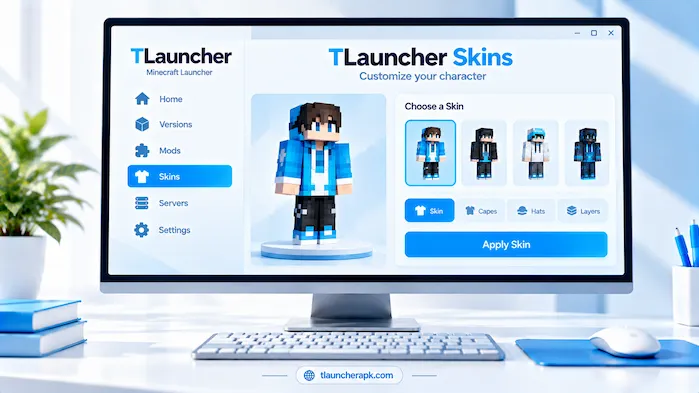
TLauncher Skins let players change the appearance of their Minecraft character without changing the game world or core gameplay. A skin can give your character a different outfit, colors, or visual style. The setup can depend on the account, Minecraft version, server, and skin system you use. This guide explains how skins work, how to choose and apply one, what requirements to check, and how to fix common display problems. It also covers skin downloads, custom designs, and multiplayer visibility so you can manage your character appearance with fewer issues.
What Are TLauncher Skins?
TLauncher Skins are character appearance files used to change how a player looks in Minecraft. A skin can change the character’s clothing, colors, face, and other visual details while leaving the game mechanics unchanged. Skin support can depend on the launcher setup and account configuration. Some skins may also look different when viewed by other players because multiplayer servers can handle player appearances in different ways. Before applying a skin, check its file format and make sure it matches the requirements of your Minecraft setup.
For a broader overview of the launcher, visit our main TLauncher guide to learn about its features, Minecraft versions, installation, servers, and more.
Minecraft Character Skins
Minecraft character skins are visual designs that replace the default player appearance. They do not add new abilities, items, or gameplay features. A skin can use different colors, clothing patterns, and shapes while keeping the basic player model. Some designs use the classic model, while others are made for the newer body shape. Choosing the correct model can prevent parts of the skin from appearing in the wrong place. Always check the model type when a custom skin does not look as expected.
How Skins Change Appearance
A skin changes the textures placed on the player’s character model. The game reads the skin image and applies its sections to areas such as the head, body, arms, and legs. This means a small change to the image can affect a specific part of the character. Skins do not normally change movement, health, tools, or other gameplay systems. They are mainly a visual customization option.
TLauncher Skins Compatibility
Skin compatibility depends on the file format, character model, Minecraft version, account setup, and the system used to display the skin. A skin may work in one setup but not appear correctly in another. Server settings can also affect what other players see. If a skin does not load, check these factors before replacing the entire launcher setup. A basic skin with the correct format is useful for testing.
TLauncher Skins Accounts and Profiles
Some skin systems connect the selected appearance to a user profile or account. The profile determines which skin should appear when Minecraft starts. If the wrong account is active, the expected skin may not load. Check the account and profile settings before changing the skin file. Keeping one clear profile for your main setup can also make skin management easier.
How TLauncher Skins Work
The skin process starts with selecting a compatible design and connecting it to the profile or skin system supported by your setup. After the skin is saved, Minecraft can use the selected appearance when the game starts. The result may depend on the version, account, and server. If you change the skin but still see the old design, allow the game to refresh and check that the correct profile is active. A test with another simple skin can help identify whether the problem comes from the file or the configuration.
TLauncher Skins System
The skin system manages the appearance associated with your Minecraft setup. It can include options for selecting, uploading, saving, or changing a character design. The exact controls can vary by launcher version and configuration. Use the available skin settings rather than editing unrelated game files. If a setting does not appear, check whether your account or selected version supports that feature.
TLauncher Skins Profile
A skin profile connects the selected appearance with the account or setup that uses it. If several accounts or profiles are available, make sure you are changing the correct one. A profile change can make it appear that a skin has disappeared when the skin is still saved under another profile. Check the active profile before uploading the same design again.
Applying a Skin
Applying a skin normally involves selecting a compatible design, saving the change, and starting Minecraft. The game may need to reload before the new appearance becomes visible. If the skin remains unchanged, close the launcher and start it again after confirming the selected profile. Avoid changing several settings at once because this can make the cause of a problem harder to find.
When Skin Changes Appear
A skin change may not appear at once in every part of the game. The launcher, game client, and server may need time to update the displayed appearance. Restarting the game can refresh the local view. Multiplayer visibility can also depend on the server’s skin system. If other players cannot see the change, check the server rules and account setup rather than assuming the skin file is broken.
How to Use TLauncher Skins
Using TLauncher Skins starts with choosing a design that matches the supported skin format and model. Next, use the available skin settings to select or upload the file. Save the change and launch Minecraft to test the result. If the appearance does not update, check the active account, selected version, and skin model. Starting with a basic skin can help you confirm that the skin system works before using a more detailed custom design.
If you have not installed the launcher yet, follow our TLauncher Download guide for the installation and Java setup steps.
Choose a Skin
Choose a skin based on the character model supported by your Minecraft setup. Check the design before using it and make sure the file is complete. A damaged image can produce missing textures or an incorrect appearance. If you are testing the skin system, use a simple design first. Once it works, you can switch to a more detailed skin.
Upload or Select a Skin
Use the available skin option to select the design from your computer or choose one that your setup already provides. Make sure you select the intended file rather than an older copy. Keep skin files in an organized folder so you can find them later. If the system rejects the file, check its format and dimensions before trying another method.
Save the Change
Save the skin after selecting it so the new appearance can be linked to the active profile. If there is no visible save option, the system may apply the selection as soon as you confirm it. Check the preview when available. If the old skin remains visible, restart the launcher or Minecraft before making another change.
Start Minecraft
Start the selected Minecraft version after saving the skin. Allow the game to load before checking the character appearance. If the skin appears correctly, the setup is working. If the old appearance remains, check the active profile and skin settings. Testing the same design in another compatible setup can also help identify whether the problem is local.
Check the Result
Look at the character from different angles to make sure the skin displays correctly. Check the head, body, arms, and legs for missing or misplaced textures. If only part of the design looks wrong, the skin model or file may be the cause. A correctly prepared skin should align with the character model it was designed for.
TLauncher Skins System
The TLauncher skin system provides a way to manage the visual appearance used by the Minecraft character. Depending on the configuration, users may be able to choose a design, apply it to a profile, and see it in the game. The system can behave differently from the standard account-based skin system used by other Minecraft setups. For this reason, check the exact account and launcher configuration before assuming that every skin method will work the same way.
TLauncher Skins Selection
Skin selection should start with a compatible file or supported skin option. Choose a design that fits the model used by your Minecraft version. Avoid using a file that has been edited with the wrong dimensions. If you have several skins, keep clear file names so you can identify them without opening each image.
Skin Profile Settings
Profile settings can control which appearance is active. Make sure the correct profile is selected before changing the skin. If the launcher supports more than one account, each account may use different settings. A profile change can therefore affect which skin appears in Minecraft. Check the active account whenever a previously selected design seems to disappear.
TLauncher Skins Visibility
Skin visibility can vary between your local game and multiplayer servers. You may see your own design while another player sees a default appearance. This can happen when the server does not use the same skin system or when account authentication affects appearance data. If visibility matters in multiplayer, check the server’s rules and supported skin method.
Supported Minecraft Versions
Skin behavior can depend on the Minecraft version you select. Older releases may handle models and textures in a different way from newer releases. When changing versions, test the skin again instead of assuming that the same configuration will work. If the design breaks after a version change, check the model and file requirements for that release.
TLauncher Skins Download
TLauncher Skins Download refers to obtaining skin files that you can use with a compatible Minecraft setup. A skin file is usually an image designed for the game’s character model. Before using one, check the source and file format. Avoid downloads that contain executable files or ask you to install unrelated software. A normal skin should not need a separate installer. Keeping only the image file reduces unnecessary risk and makes it easier to manage your collection.
Finding a Minecraft Skin
You can find Minecraft skins through websites and communities that provide skin designs. Check the file before adding it to your game. Look for the expected image format and avoid packages that include unrelated programs. If a website provides several download buttons, make sure you select the actual skin file. Do not open an executable file simply because a page labels it as a skin download.
Skin File Format
A compatible skin is normally provided as an image rather than a program. The exact dimensions and model type matter because Minecraft needs to map the image onto the character correctly. Check the skin requirements for your selected setup before using a custom design. If the file has the wrong dimensions, parts of the character may look empty, stretched, or misplaced.
Checking a Downloaded Skin
After downloading a skin, check the file name and extension before opening it in your image viewer or skin editor. Avoid files that end in executable extensions when you expected an image. You can also scan the file with your security software. If a website gives you an archive, inspect its contents before opening anything inside. A skin image should not require an unknown program to install it.
Avoiding Unsafe Skin Files
A skin is normally an image, so be cautious when a download includes an installer, script, or unrelated executable. Do not disable antivirus protection to open a file that your security software flags. Instead, check the source and use a safer copy from a trusted skin provider. Keeping skin downloads separate from your main program files can also make file management easier.
How to Change Minecraft Skin
Changing Minecraft skin involves selecting a compatible design and applying it through the supported skin settings. Start with a clean skin file that matches your character model. Select it through the available profile or skin option, save the change, and launch the game. If the new appearance does not appear, check the active account and Minecraft version. You can also test another simple design to determine whether the problem comes from the original file.
Prepare the Skin
Prepare the skin before adding it to the launcher. Check the image dimensions, model type, and file format. Make sure the design does not contain broken or missing areas. Save the file with a clear name so you can identify it later. Keeping the original copy can help if you need to edit or replace the design.
Open the Skin Settings
Open the skin or profile settings available in your setup. Look for the option that controls the player appearance. Avoid changing Java, memory, or other unrelated settings while working on the skin. Keeping the process focused makes it easier to identify a problem if the new design does not appear.
Select the Skin
Choose the prepared image and confirm the selection. Check the preview if the interface provides one. If the preview looks wrong, verify the model type and image dimensions before saving. A clean preview usually gives you a quick way to spot basic file problems.
Save Changes
Save the selected appearance and allow the profile to update. If the system applies changes without a separate save button, wait for the confirmation or updated preview. Do not upload the same file several times while waiting. Restarting the launcher can help when the interface does not refresh.
Launch and Test
Start Minecraft and check the character appearance. Look at the skin from several angles to confirm that all parts display correctly. If the skin works in single-player but not on a server, the server may use different visibility rules. Check multiplayer requirements before changing the skin again.
TLauncher Skin Requirements
TLauncher skin requirements can include a compatible image format, correct dimensions, supported character model, account configuration, and Minecraft version. A skin file should be prepared for the model your game uses. The account or server can also affect whether other players see the design. Checking these requirements before applying a skin can prevent common display problems. If the design fails, test a simple compatible skin first.
Minecraft Version
Your selected Minecraft version can affect skin behavior. Different releases may support different player models or handle skin layers in different ways. If you change versions, check the skin again. A design that worked before may need a different model or configuration in another release.
Skin Format
Use the image format supported by your setup and keep the skin dimensions correct. A file that looks like a skin but uses the wrong structure may not load correctly. Avoid converting the image through tools that can change its dimensions or transparency without your knowledge.
Account Requirements
The active account can affect which skin system is available and what other players see. Check that you are using the account connected to the intended profile. If the skin disappears after switching accounts, return to the correct profile and check the saved appearance.
Internet Connection
An internet connection may be needed when the skin system retrieves profile or appearance information from an online service. If the connection is unstable, the skin may take longer to update. Test the connection if the launcher works but the appearance does not refresh.
Why Is TLauncher Skin Not Showing?
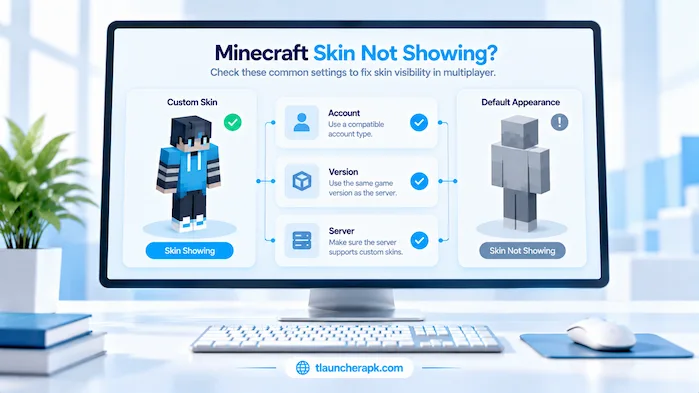
TLauncher skin not showing can happen because of an incorrect profile, unsupported skin format, wrong model, Minecraft version mismatch, server restrictions, or a delayed update. Start by checking the selected skin and active account. Then test the design in a compatible version. If the skin works locally but other players cannot see it, check the server’s skin and authentication rules. Testing with a basic skin can help separate a file problem from a profile problem.
Incorrect Account
An incorrect account can make the selected skin appear to be missing. Check which profile is active and confirm that it is the one where you saved the skin. If you use several accounts, keep their skin files and settings organized. This can prevent accidental changes to the wrong profile.
Wrong Skin Setting
A disabled or incorrect skin option can prevent the selected appearance from loading. Review the available skin settings and make sure the correct design is selected. Avoid changing several options at the same time. Test the skin again after each change.
Version Mismatch
A Minecraft version mismatch can affect the skin model or the way the appearance is loaded. Check whether the skin was designed for the model supported by your selected release. If you recently changed versions, test the skin with the previous compatible release.
Server Limitations
A multiplayer server can use its own rules for player skins. It may not display every custom appearance in the same way as a local game. If your skin appears correctly in one environment but not on a server, check that server’s rules. The issue may not be caused by your skin file.
Cached Appearance
Minecraft or a server can sometimes continue showing an older appearance until the game refreshes. Restart the game and check again. If the old design remains, close the launcher and start it again. Avoid repeatedly changing the skin before the previous update has had time to appear.
Unsupported Configuration
An unsupported combination of account, version, skin model, or launcher settings can prevent the appearance from loading. Return to a basic configuration and test a standard compatible skin. If that works, add your custom settings back one at a time.
TLauncher Skin Problems
TLauncher skin problems can range from a missing appearance to an incorrect model or a design that does not appear in multiplayer. The fastest way to troubleshoot is to identify whether the problem affects one skin, all skins, or only one server. Test a basic compatible design first. Then check the account, Minecraft version, model, and skin settings. This process can show whether the issue is with the file or the wider configuration.
TLauncher Skins Disappears
A skin may disappear after changing accounts, versions, or profiles. Check the active profile first and confirm that the design is still selected. If you changed Minecraft versions, review the skin model and configuration. A fresh test with another compatible skin can help identify the cause.
TLauncher Skins Does Not Load
If the skin does not load, check the image file and its dimensions. Make sure it is an actual skin image rather than an archive or another file type. Then confirm that the selected profile uses the correct skin. Restart the launcher if the interface does not update.
TLauncher Skins Looks Incorrect
A skin can look incorrect when it uses the wrong model or dimensions. Parts of the arms, legs, or body may appear misplaced. Check whether the design was created for the model your setup uses. Opening the image in a skin editor can also help you identify missing sections.
TLauncher Skins Is Not Visible to Other Players
Other players may see a default appearance even when your own client displays the custom skin. This can happen because the server uses different skin rules or account authentication. Check the server requirements before changing your local skin settings. If the server does not support the same skin method, the issue may be outside your control.
TLauncher Skins Changes Are Not Saved
If a skin change does not remain after restarting the game, check whether the correct profile was selected and whether the change was saved. Make sure the skin file is stored in a location you can access again. If the interface supports a save or apply action, use it before closing the settings.
Minecraft Skins for TLauncher
Minecraft skins for TLauncher should use a compatible image and character model. The design itself can be simple or detailed, but the file must follow the format expected by the skin system. Before applying a skin, check its dimensions and make sure it does not contain unnecessary files. If you want to use a custom design, save the original image so you can edit it later. Testing a basic skin first is useful when setting up a new profile.
Custom Skin Designs
Custom skin designs let you create a character appearance that differs from ready-made options. You can edit colors, clothing, facial details, and other texture areas. Keep the design within the correct skin dimensions and model. A simple editor can help you check the image before using it. Save a backup copy of your finished design so you do not lose your work.
Classic and Slim Models
Minecraft supports different player body models, including classic and slim options. The main difference is the arm structure. A skin designed for one model may not look correct when used with the other. Check the intended model before applying the design. If the arms appear wrong, this should be one of the first settings you inspect.
TLauncher Skins Layers
Some skins use additional texture layers for details such as jackets, sleeves, hats, or other visual elements. These layers can add depth to the design without changing gameplay. The selected Minecraft version and skin system can affect how these details appear. If a layer is missing, check whether it is enabled and supported by the current setup.
TLauncher Skin Editor
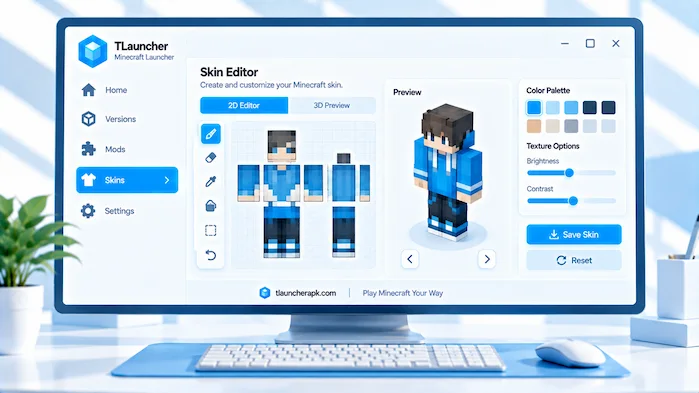
A TLauncher skin editor can be used to create or adjust a character design before applying it. The important part is keeping the final image compatible with the expected skin model and dimensions. Use simple editing tools when making changes and keep a backup of the original file. Avoid adding features that require a special mod unless you know the selected Minecraft setup supports them. A standard skin should remain an image that Minecraft can read.
Create a Custom Skin
Start with a compatible blank template or an existing skin you have permission to edit. Change the colors and texture areas while keeping the original dimensions. Save the finished design in the supported image format. Before applying it, open the file and check the complete character texture for missing areas.
Edit Existing Skins
When editing an existing skin, keep an untouched copy of the original. This lets you restore the design if an edit causes a problem. Change one part at a time and check the result in a skin preview when available. Do not resize the image unless the skin editor is designed for that task.
Check the Final Design
Before applying the final skin, check the head, body, arms, legs, and extra layers. Look for blank areas, accidental marks, and incorrect colors. Confirm that the model matches your intended character type. A short review can prevent simple display problems after the skin is applied.
TLauncher Skins and Multiplayer
TLauncher Skins can appear differently in multiplayer because the server controls part of the online experience. Your own game may display a custom appearance while another player sees a default skin. Account authentication and server configuration can affect this behavior. Check the multiplayer network’s skin rules before changing your files. If a server requires a specific account or skin method, follow those requirements instead of trying unrelated settings.
Server Skin Support
Server skin support varies between multiplayer networks. Some servers may display custom appearances through their own systems, while others depend on account-based data. Check the server information if other players cannot see your skin. Testing the same skin on another compatible server can help identify whether the issue is local or server-specific.
Account Authentication
Account authentication can affect how a server receives and displays player information. If the server requires an authenticated account, its skin system may depend on that account. Check the server’s current requirements before attempting to change your local configuration. Never share account passwords to make a skin appear.
Multiplayer Skin Visibility
Visibility is not always the same for the player and other users. Your local client can show the selected appearance even when the server does not send that appearance to other players. If this happens, review the server’s rules and account setup. The skin file itself may be correct.
How to Fix TLauncher Skin Problems
To fix TLauncher skin problems, start with the simplest checks. Confirm the active account, selected skin, Minecraft version, skin model, and file format. Restart the launcher and game after saving changes. If the issue only appears on one server, check its skin and authentication rules. Test a basic compatible skin before returning to a custom design. This step-by-step method can help you find the cause without changing unrelated Minecraft settings.
Check the Selected Skin
Open the skin settings and confirm that the intended design is selected. If several files have similar names, make sure you are using the correct one. Check the preview when available. A wrong file can look like a launcher problem when the actual issue is simple file selection.
Confirm the Account
Make sure the active profile is the account where the skin was saved. Switching accounts can change the displayed appearance. If you use several profiles, check each one before uploading the skin again. This avoids creating duplicate copies and makes the setup easier to manage.
Check Minecraft Version
Confirm that the selected release supports your skin model and configuration. If you recently changed versions, return to a known working release and test again. This can help identify whether the version change caused the problem.
Restart the Launcher
Restarting the launcher can refresh settings that did not update during the first change. Close Minecraft first, then close the launcher. Open it again and check the selected profile and skin. A clean restart is often easier than changing several settings at once.
Test Another Skin
Try a simple compatible skin if your custom design does not appear. If the test skin works, the original file may have a format, model, or texture problem. If neither skin works, check the account and skin system instead.
Check Server Limitations
If the skin works in one environment but not on a multiplayer server, review that server’s requirements. The network may use a different skin system or account rule. Testing another compatible server can help confirm whether the limitation belongs to the original server.
Frequently Asked Questions
What Are TLauncher Skins?
They are character appearance designs that change how a Minecraft player model looks without changing normal gameplay mechanics.
How Do TLauncher Skins Work?
The selected image is applied to the player model through the supported skin and profile system.
How to Change TLauncher Skins?
Select a compatible design through the available skin settings, save the change, and restart the game if the new appearance does not appear.
Where Are TLauncher Skins?
They can be stored through the supported skin system or as image files on your computer, depending on the setup you use.
How to Download TLauncher Skins?
Choose a trusted source, download the skin image, check its format, and use it with a compatible Minecraft profile.
Why Is TLauncher Skins Not Showing?
Check the active account, skin model, file format, Minecraft version, and server rules before trying another design.
Can TLauncher Use Minecraft Skins?
Compatible Minecraft skin files can be used when they match the selected setup, model, and supported skin system.
How to Fix TLauncher Skins?
Start by checking the selected profile, skin file, model, Minecraft version, and multiplayer requirements.
Are TLauncher Skins Free?
Many skin designs are available without payment, but the terms depend on the website or creator providing the design.
Can TLauncher Skins Work Multiplayer?
Multiplayer visibility depends on the server, account setup, and skin system used by the connected network.
Final Thoughts On TLauncher Skins
TLauncher Skins provide a simple way to change the visual appearance of a Minecraft character while keeping normal gameplay intact. A successful setup depends on the correct skin format, model, account, Minecraft version, and supported skin system. If a design does not appear, check the active profile, test a basic skin, restart the launcher, and review server requirements when playing online. Custom designs can also be edited with a suitable skin tool as long as the final file keeps the required format and dimensions.